WinPack - Windows Store Packager for Unreal Engine 4.27
WinPack is a comprehensive UE4 plugin that automates the packaging, signing, and submission process for publishing games to the Microsoft Windows Store.
Features
- Microsoft Store Authentication: Sign in with your Microsoft Developer account directly from the editor
- App Association: Select or create apps from your Microsoft Partner Center account
- Automated Packaging: Package your UE4 game for Windows Store with one click
- Code Signing: Automatically sign packages with your digital certificate
- Progress Tracking: Real-time progress bar and live log panel
- Auto-Detection: Automatically detects SignTool, Windows SDK, and certificates
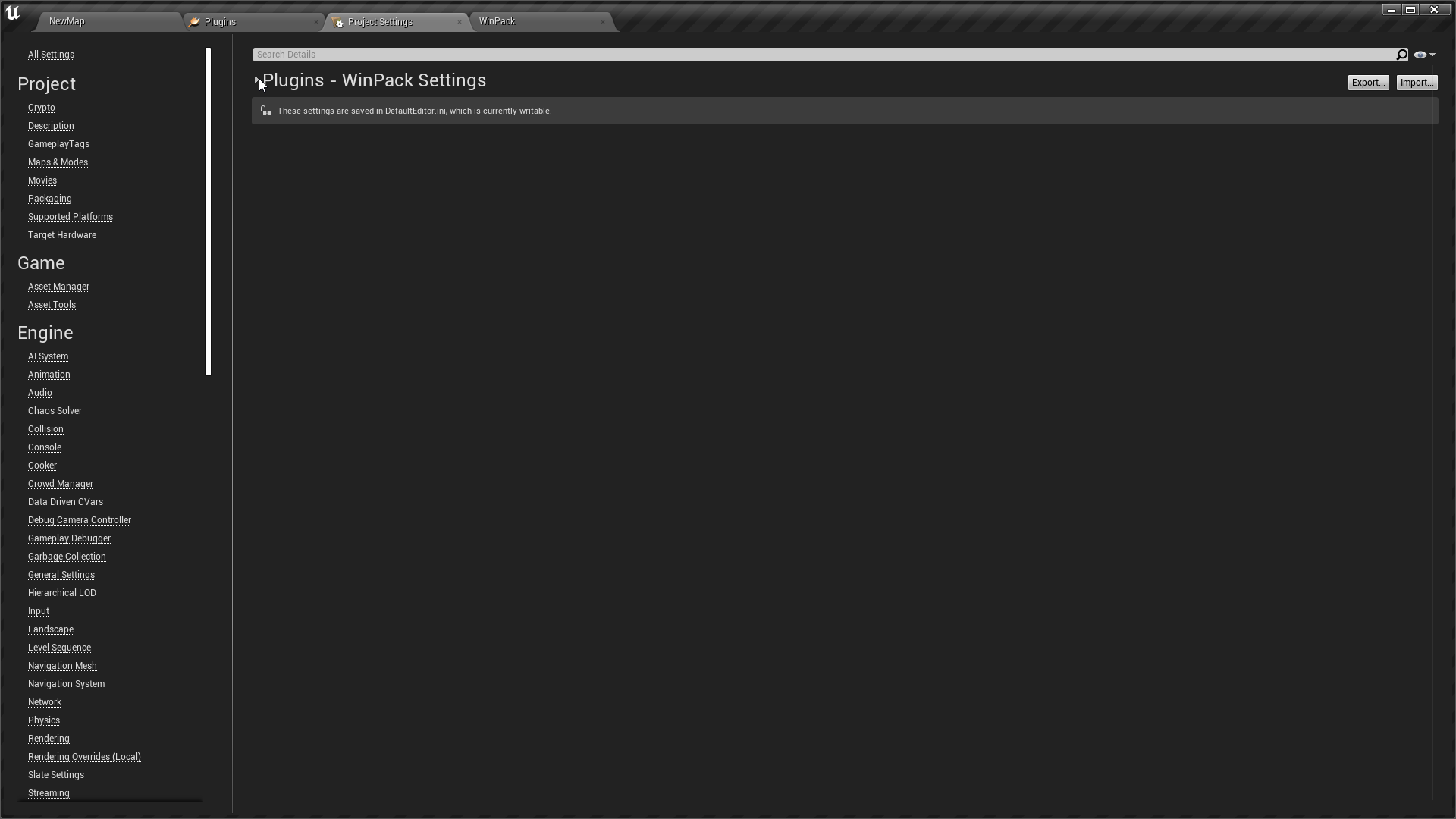
- Configurable Settings: All settings accessible via Project Settings > WinPack Settings
Requirements
- Unreal Engine 4.27
- Windows 10 SDK
- Microsoft Developer Account
- Code Signing Certificate (for signing packages)
- Visual Studio 2019 or later
Installation
- Copy the
WinPackfolder to your project'sPluginsdirectory - Restart Unreal Engine
- Enable the plugin in Edit > Plugins > Search for "WinPack"
- Restart the editor when prompted
Configuration
1. Project Settings
Navigate to Edit > Project Settings > Plugins > WinPack Settings to configure:
Microsoft Store Settings
- API Token: Your Microsoft Store API token
- Application ID: Your app's Store ID
- Tenant ID: Azure AD tenant ID
- Client ID: Azure AD application client ID
- Client Secret: Azure AD application secret
Signing Configuration
- SignTool Path: Path to signtool.exe (auto-detected)
- Certificate Path: Path to your .pfx certificate file
- Certificate Password: Password for your certificate
- Timestamp Server URL: Timestamp server (default: http://timestamp.digicert.com)
Packaging Configuration
- Package Output Path: Where to save packaged files
- Additional Package Output Path: Secondary location for submission files
- Package Name: Name of your package
- Publisher Display Name: Your publisher name
- Publisher Name: Publisher identifier (CN=...)
- Package Version: Version number (e.g., 1.0.0.0)
Build Configuration
- Build Configuration: Shipping/Development/Debug
- Target Platform: Win64
- Archive Directory: Where to archive builds
Auto-Detection Settings
- Auto-Detect SignTool: Enable automatic SignTool detection
- Auto-Detect Windows SDK: Enable automatic Windows SDK detection
UI Settings
- Show Live Log: Display live log panel
- Show Progress Bar: Display progress bar
Usage
Opening WinPack
Access WinPack through:
- Menu: Window > WinPack
- Toolbar: Click the WinPack button in the toolbar
Workflow
Step 1: Microsoft Store Authentication
- Click Sign In with Microsoft
- Sign in with your Microsoft Developer account in the browser
- Authorize the application
Step 2: Associate App with Store
- Click Refresh to load your apps from Partner Center
- Select an existing app from the dropdown, or choose Create New App
- Click Associate to link your project with the selected app
Step 3: Package & Sign
Choose one of the following options:
- Package Game: Build and package the game for Windows Store
- Sign Package: Sign an existing package with your certificate
- Package & Sign (All-in-One): Complete workflow in one step
You can also click Open Output Folder to view packaged files.
Step 4: Upload to Store
- Click Upload to Microsoft Store
- The signed package will be uploaded to your Partner Center account
- Complete submission through Partner Center dashboard
Live Log Panel
The Live Log panel shows real-time information about:
- Auto-detection results
- Authentication status
- Packaging progress
- Signing status
- Upload progress
- Error messages and warnings
Progress Bar
The progress bar displays:
- Current operation status
- Percentage complete
- Status text description
Microsoft Partner Center Setup
Creating a Microsoft Developer Account
- Visit https://partner.microsoft.com/dashboard
- Sign up for a Microsoft Developer account
- Complete registration and pay the registration fee
- Verify your account information
Creating an App
- Sign in to Partner Center
- Click Apps and games > New product
- Enter your app name and reserve it
- Complete app information in the dashboard
Getting API Credentials
- Go to Account settings > User management
- Click Azure AD applications
- Create a new Azure AD application
- Note the Client ID and Tenant ID
- Create a client secret and save it securely
- Enter these credentials in WinPack settings
Code Signing Certificate
Obtaining a Certificate
- Purchase a code signing certificate from a trusted CA:
- DigiCert
- Sectigo
- GlobalSign
- Certum
- Export the certificate in .pfx format with private key
- Save the certificate securely
- Configure the certificate path in WinPack settings
Self-Signed Certificates (Development Only)
For development/testing, you can create a self-signed certificate:
New-SelfSignedCertificate -Type Custom -Subject "CN=YourPublisherName" -KeyUsage DigitalSignature -FriendlyName "YourAppName" -CertStoreLocation "Cert:\CurrentUser\My" -TextExtension @("2.5.29.37={text}1.3.6.1.5.5.7.3.3", "2.5.29.19={text}")
Note: Self-signed certificates cannot be used for Store submission.
Troubleshooting
SignTool Not Found
- Install Windows 10 SDK from https://developer.microsoft.com/windows/downloads/windows-10-sdk/
- Manually set SignTool path in Project Settings
Certificate Errors
- Verify certificate path is correct
- Check certificate password
- Ensure certificate is valid and not expired
- Verify certificate includes code signing usage
Packaging Fails
- Check Output Log for detailed error messages
- Verify project builds successfully
- Ensure sufficient disk space
- Check that all content is properly referenced
Authentication Issues
- Verify API credentials in Project Settings
- Check internet connection
- Ensure Azure AD application permissions are configured
- Clear browser cache and try again
Upload Fails
- Verify package is properly signed
- Check Microsoft Partner Center dashboard for submission status
- Ensure app reservation is still valid
- Verify API token has necessary permissions
File Structure
WinPack/
├── WinPack.uplugin
├── README.md
├── Resources/
│   └── ButtonIcon_40x.png
└── Source/
    └── WinPack/
        ├── WinPack.Build.cs
        ├── Public/
        │   ├── WinPack.h
        │   ├── WinPackSettings.h
        │   ├── WinPackUI.h
        │   ├── WinPackCommands.h
        │   └── WinPackStyle.h
        └── Private/
            ├── WinPack.cpp
            ├── WinPackSettings.cpp
            ├── WinPackUI.cpp
            ├── WinPackCommands.cpp
            └── WinPackStyle.cpp
API Reference
UWinPackSettings
Settings class accessible via Project Settings.
Key Properties:
FString APIToken- Microsoft Store API tokenFString SignToolPath- Path to signtool.exeFString CertificatePath- Path to certificate fileFString PackageOutputPath- Output directory for packages
Key Functions:
bool AutoDetectSignTool()- Automatically detect SignTool locationFString GetDefaultSignToolPath()- Get default SignTool pathFString GetDefaultTimestampServerURL()- Get default timestamp server
FWinPackModule
Main module class.
Key Functions:
void PackageGame()- Package the game for Windows Storevoid SignGamePackage()- Sign the packaged gamevoid AuthenticateMicrosoft()- Open Microsoft authenticationvoid AssociateAppWithStore()- Associate project with Store appvoid UploadToStore()- Upload signed package to Store
SWinPackUI
Main UI widget class.
Key Functions:
void AddLogMessage(const FString& Message)- Add message to logvoid UpdateProgressBar(float Progress, const FString& StatusText)- Update progressvoid RefreshUI()- Refresh UI elements
Known Limitations
- Microsoft Store API integration requires additional implementation for production use
- App list fetching currently shows placeholder data
- Upload functionality requires Microsoft Store Submission API integration
- Async process monitoring could be enhanced for better user feedback
Future Enhancements
- Full Microsoft Store Submission API integration
- Automated screenshot and metadata upload
- Multi-language package support
- Automated testing integration
- Build versioning automation
- Store analytics integration
Support
For issues, questions, or feature requests:
- Check the Troubleshooting section above
- Review UE4 Output Log for detailed error messages
- Consult Microsoft Partner Center documentation
- Check Windows Store certification requirements
License
Copyright AlphaCore. All Rights Reserved.
Version History
Version 1.0
- Initial release
- Basic packaging and signing functionality
- Microsoft Store authentication
- Project Settings integration
- Live log and progress tracking
- Auto-detection features
- Modern plugin structure compatible with UE4.27